Passwordless Authentication in M365
Steps to Enable/Disable Passwordless Authentication Tenant-Wide
1. Sign in to the Azure AD Portal
- Open a web browser and go to the Azure AD Portal.
- Sign in with your Global Administrator or Security Administrator account.
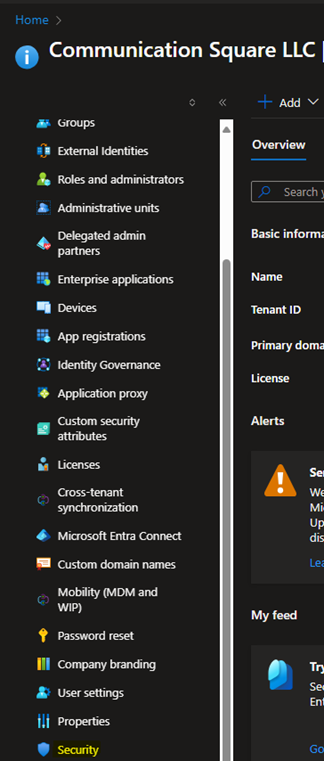
2. Navigate to Security
- From the left-hand navigation pane, click on "Entra ID".
- Under the Manage section, select "Security".
3. Open Authentication Methods
- Under Security, select "Authentication Methods".
- This is where you'll manage authentication methods for the entire tenant, including passwordless options.
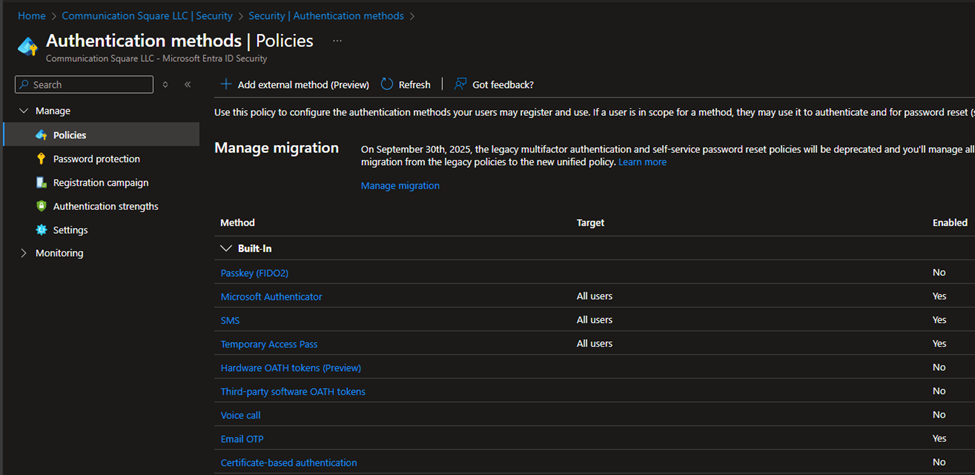
4. Select Microsoft Authenticator
- In the Authentication Methods section, find and select "Microsoft Authenticator" (which handles passwordless sign-ins via the app).
- This option controls the passwordless authentication capability for your tenant.
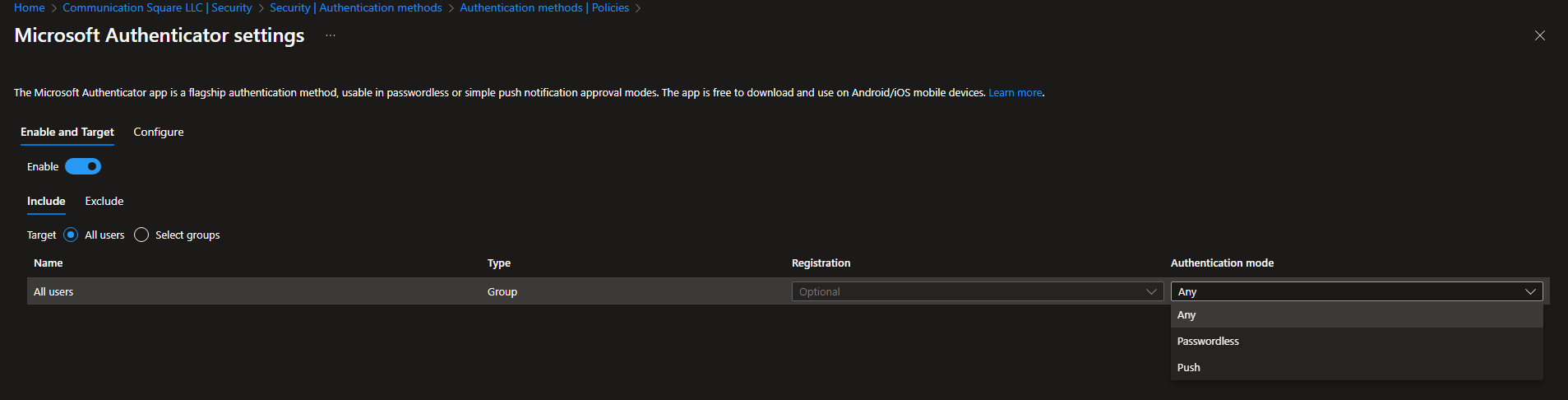
5. Disable or Enable Passwordless Authentication
- You will see an option for Passwordless authentication.
- Set the "Passwordless authentication" toggle to Off. This will turn off the feature across the entire tenant.
- If you have specific user groups or individuals configured, ensure that passwordless is disabled for them too.
6. Review Conditional Access Policies (Optional)
- It’s important to review any Conditional Access policies that may enforce passwordless sign-in.
- Navigate to Azure Active Directory > Security > Conditional Access.
- Check any policies requiring passwordless authentication or Microsoft Authenticator and adjust them accordingly.
7. Save and Confirm Changes
- Once you've toggled the setting off and reviewed policies, click Save to apply the changes.
Last updated on